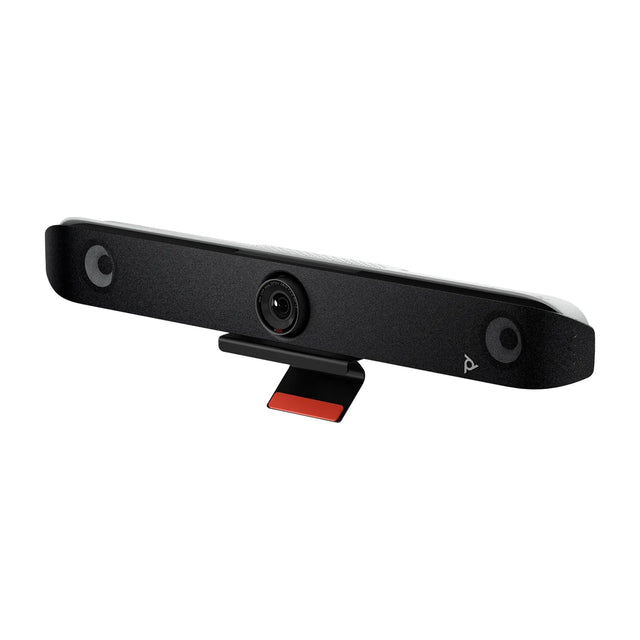
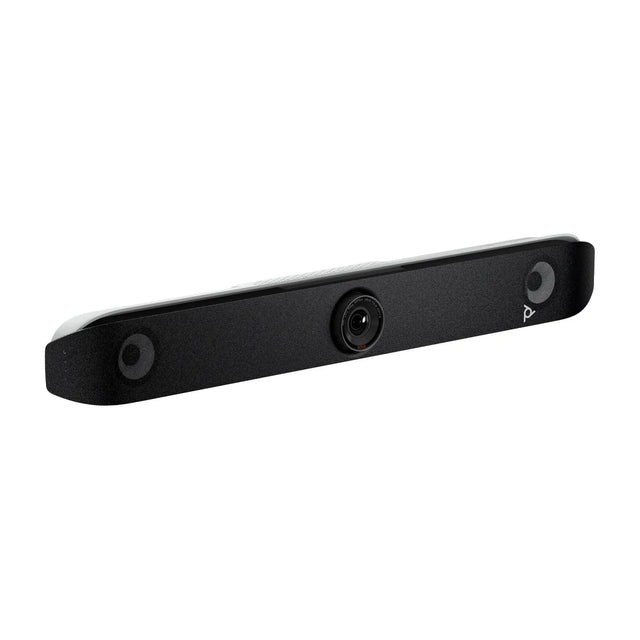
Poly (formerly Polycom, now part of HP) offers Microsoft Teams Rooms systems in two flavors: the Studio X32, X52, X72 video bars and the G7500 codec run Teams Rooms on Android on the device itself, while the Studio 5 and Studio 7 Room Compute units run Teams Rooms on Windows with a Poly camera and audio. Every room needs a Microsoft Teams Rooms license (Basic or Pro) and a resource account.

Poly Teams Rooms lineup
| System | Platform | Room size | Controller | Price |
|---|---|---|---|---|
| Poly Studio X32 | Teams Rooms on Android | Huddle, small | TC8 | $1,638 |
| Poly Studio X52 | Teams Rooms on Android | Small, medium | TC8 or TC10 | $3,598 |
| Poly Studio X72 | Teams Rooms on Android | Medium, large | TC10 | $5,879 |
| Poly G7500 | Teams Rooms on Android (modular codec) | Medium to boardroom | TC8 / TC10 | $2,075 |
| Poly Studio G62 | Android room system | Medium to boardroom | TC10 | $2,229 |
| Poly Studio 5 Room Compute | Teams Rooms on Windows | Small to large | TC10 | $2,059.99 |
| Poly Studio 7 Room Compute | Teams Rooms on Windows | Large, boardroom, classroom | TC10 | $3,049.99 |
Prices are for the item listed; controllers, cameras and mics may be separate depending on the bundle. Check each product guide for what is included.
Android all-in-one: Studio X series
The Studio X bars put the camera, mics, speakers and compute in one device. You add a display and a touch controller. No PC to patch, fewer cables, and fast deployment. The same hardware can also run Zoom Rooms or Poly Video mode if your platform changes, by switching the provider in the device settings.
Expand audio with the Poly Studio Table Microphone on X52 and X72.
Modular Android: G7500
The G7500 is a codec box for rooms that need their own camera choice, ceiling or table mics, or dual displays. Pair it with a camera such as the Poly Studio E70 and the Poly IP Table Microphone or IP Ceiling Microphone. It suits boardrooms and larger custom rooms.
Windows: Studio 5 and 7 Room Compute
Choose Teams Rooms on Windows when you need features that reach Windows first, multiple cameras, or tighter Intune management. The Studio 5 handles one or two cameras; the Studio 7 is aimed at multi-camera large rooms. Pair them with USB devices like the Poly Studio V52 or V72. See Teams Rooms on Windows vs Android.
Licensing
| License | What you get |
|---|---|
| Teams Rooms Basic | Free, core meeting features, up to 25 rooms per tenant |
| Teams Rooms Pro | Per room per month: advanced audio/video features, intelligent cameras, Pro Management portal, and more |
Check Microsoft's current pricing and limits. Details: Teams Rooms Basic vs Pro.
Setup outline
- Create a resource account in Microsoft 365 and assign a Teams Rooms license.
- Mount the bar or camera and connect the display by HDMI.
- Connect the TC8 or TC10 to the network (PoE) and pair it with the system.
- On first boot select Microsoft Teams as the provider and sign in with the resource account (device code sign-in is supported).
- Update firmware, then enroll the room in the Teams admin center.
Full walk-through: Poly video conferencing setup and Teams Rooms setup guide.
Choosing between Poly models? Send us your room details or browse all Poly systems.
Related guides
- Microsoft Teams Rooms: Hardware, Licenses and Setup
- Microsoft Teams Rooms for boardrooms: equipment and setup
- Microsoft Teams Rooms for huddle rooms: equipment and setup
- Microsoft Teams Rooms for large rooms: equipment and setup
- Microsoft Teams Rooms for medium rooms: equipment and setup
- Microsoft Teams Rooms for small rooms: equipment and setup
Outfitting several rooms, or reselling? Get a volume quote or apply for wholesale pricing →