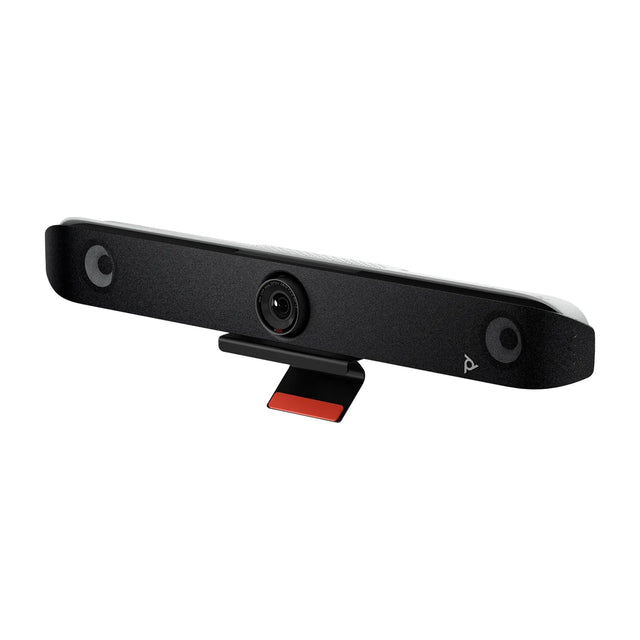
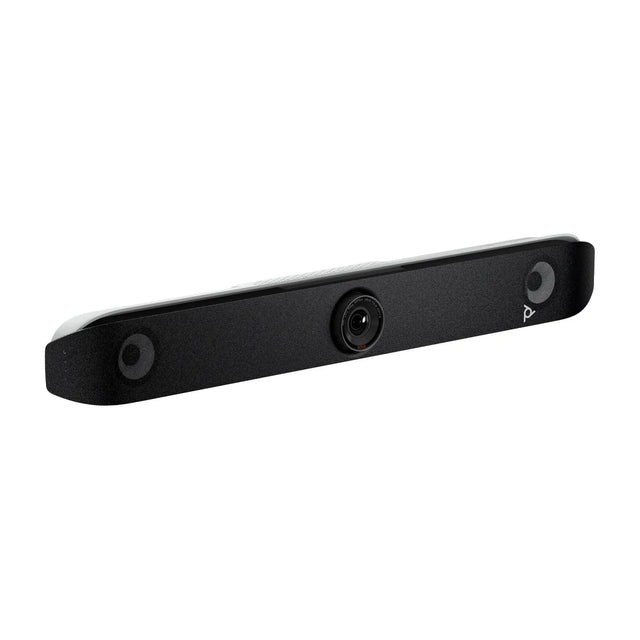
To set up a Poly (formerly Polycom) video bar, mount it above or below the display, connect HDMI to the display, Ethernet to the network and power, pair a Poly TC8 or TC10 touch controller, and choose the provider (Microsoft Teams, Zoom Rooms or Poly Video mode) in the setup wizard. USB models like the Studio V-series and Studio USB plug into a PC instead. Poly publishes admin guides, user guides and quick starts for each model on HP's Poly support site.

Poly device types
| Type | Models | Runs the meeting | Connect to |
|---|---|---|---|
| All-in-one bar (appliance) | Studio X32, X52, X72; older Studio X30, X50, X70 | The bar (Teams, Zoom, Poly Video mode, others) | Display, network, controller |
| USB bar | Studio V12, V52, V72, Studio USB, Studio R30 | A PC or laptop | USB to PC |
| Modular codec | G7500, Studio G62 | The codec | Cameras, mics, display, controller |
| Teams Rooms compute | Studio 5, Studio 7 Room Compute | Windows Teams Rooms | USB peripherals, display, console |
Set up a Studio X bar (X32, X52, X72)
- Mount the bar with the X52/V52 VESA mount or X72/V72 VESA mount, centered on the display.
- Connect HDMI from the bar's output to the display.
- Connect Ethernet. The Studio X32 is powered by PoE++; use a PoE++ switch port or the Poly PoE++ 65W adapter. The X52 and X72 use their own power supplies.
- Connect the controller. A Poly TC8 or TC10 connects to PoE on the same network and pairs with the bar.
- Power on and run the setup wizard on the controller or display: language, country, network, then provider.
- Pick your provider and sign in: Teams Rooms (resource account), Zoom Rooms (activation code or sign-in) or another supported mode.
- Add microphones if needed, such as Poly Studio Table Microphone or Studio A2, where supported by your model and mode.
- Update firmware through the provider's admin portal or Poly Lens.
- Test a call and check camera framing.
Platform setup details: Teams Rooms setup guide and Zoom Rooms setup. Teams kits: Poly Teams Rooms systems.
Set up a Poly USB bar (V-series, Studio USB, R30)
- Mount the bar and connect power.
- Connect USB to the room PC or laptop.
- Optionally connect HDMI pass-through (on models that support it) for one-cable BYOD.
- Select the Poly device as camera, microphone and speaker in Teams, Zoom or Meet.
- Install Poly Lens Desktop to update firmware and adjust settings.
Model guides: Studio V52 setup, Studio V12 setup, Studio R30 setup.
Factory reset a Poly Studio X30 (and other Studio X bars)
You can restore a Studio X bar to factory defaults in two ways:
- From the web interface: browse to the bar's IP address, sign in as admin and use the system reset option. This erases settings and returns the bar to the setup wizard.
- With the hardware restore button: Studio X bars have a pinhole restore button. The hold time and whether you press it during power-on matter, and they differ between "reset settings" and "full factory restore," so follow the procedure in the Poly Studio X admin guide for your model.
After a reset you'll need to re-run the setup wizard, re-pair the controller and sign in to your provider again. Before resetting, try a reboot and a firmware update. Model-specific steps for current bars: Studio X32 troubleshooting, Studio X52 troubleshooting.
Where to find Poly and Polycom manuals
Poly is now part of HP. Manuals, admin guides, release notes and software are on the HP Poly support site. Search by exact model, such as "Studio X30" or "G7500." Polycom-era products like the Group Series, RealPresence and Trio phones still have documentation there, though many older models are end of life.
Useful documents for each model:
- Quick start guide: what's in the box and basic connections.
- Admin guide: network, provider modes, security, reset procedures.
- User guide: making calls and using the controller.
- Release notes: firmware changes and known issues.
Our guides for current models are linked from Poly video conferencing, for example the Studio X52 guide and G7500 guide.
Replacing an older Polycom system? Send us what's in the room and we'll recommend the current Poly equivalent.
Related guides
Outfitting several rooms, or reselling? Get a volume quote or apply for wholesale pricing →