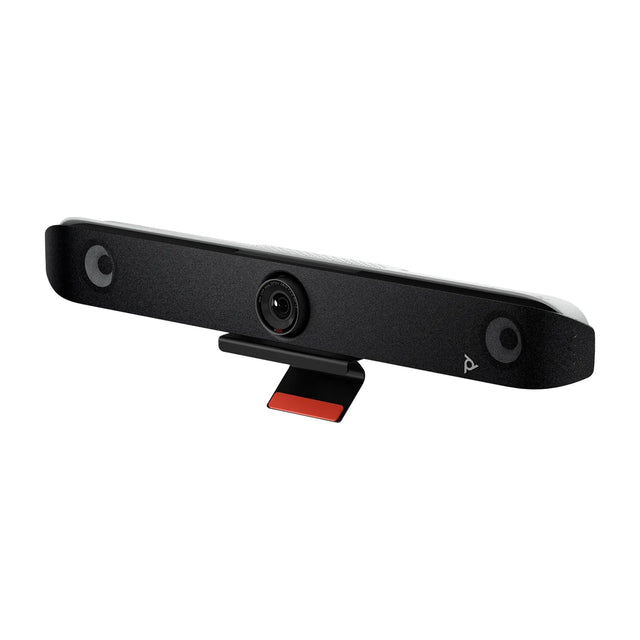
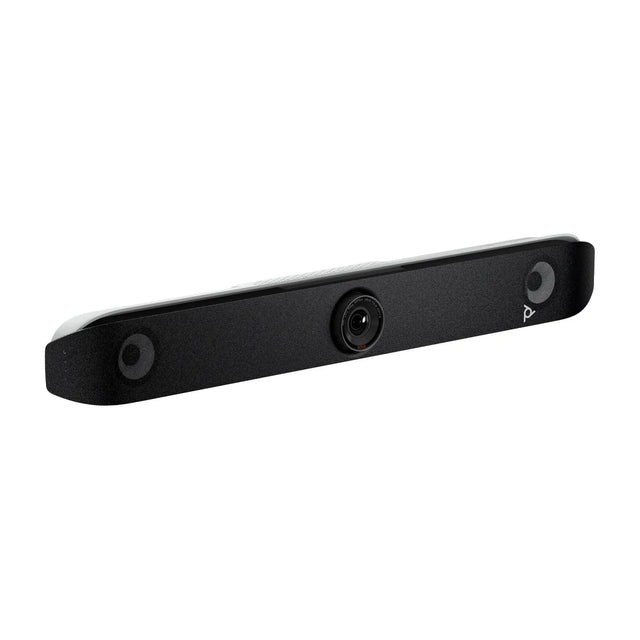
To set up a conference room for video meetings: measure the room and count seats, choose your platform (Teams, Zoom, Meet or BYOD), pick a camera and audio system sized to the room (usually an all-in-one video bar), add a display and a touch controller, run wired network and power, mount everything at the front of the room, then sign in and run a test call. A typical small or medium room can be set up in a few hours once cabling is in place.

Step 1: Assess the room
Write down:
- Room dimensions and the distance from the front wall to the farthest seat.
- Number of seats, usually and at most.
- Table shape and where the display will go.
- Windows, glass walls and hard surfaces (they affect lighting and echo).
- Existing network ports and power outlets.
Room size drives everything else. See huddle room setup, small, medium and large conference room setup.
Step 2: Choose the platform
| Option | How meetings run | Best for |
|---|---|---|
| Microsoft Teams Rooms | Dedicated system, one-touch join | Microsoft 365 organizations |
| Zoom Rooms | Dedicated system, one-touch join | Zoom-first organizations |
| Google Meet hardware | Dedicated system | Google Workspace organizations |
| BYOD | Users connect their laptop by USB | Mixed platforms, simplest and cheapest |
See video conferencing platforms and Teams Rooms vs BYOD.
Step 3: Choose the camera and audio
For most rooms, an all-in-one video bar (camera, mics and speakers in one unit) is the right answer.
| Room | People | Example system |
|---|---|---|
| Huddle | 2-6 | Logitech MeetUp 2 (USB), Yealink MeetingBar A10 |
| Small / medium | 4-10 | Yealink MeetingBar A40, Poly Studio X52 |
| Medium / large | 8-16 | Logitech Rally Bar plus expansion mic |
| Large / boardroom | 12+ | PTZ camera, ceiling or table mics, DSP |
4K AI PTZ cameras suit large rooms and classrooms: mount at the front, center on the table, set presets or auto-framing, and pair with separate microphones. See how to set up a conference room camera and best PTZ cameras.
Audio must reach every seat. If the table is longer than the bar's pickup range, add an expansion mic. See conference room microphone setup.
Step 4: Choose the display
One commercial display for small rooms; two for medium and larger rooms that share content often. Size it so the farthest seat can read text. See conference room TV size and display options.
Step 5: Add a controller and scheduling
Teams Rooms, Zoom Rooms and Meet rooms need a touch controller at the table. A booking panel outside the door is optional but helpful. See best touch controllers and booking panels.
Step 6: Network and power
- A wired Ethernet drop behind the display for the video bar or room compute.
- A PoE drop at the table for the touch controller.
- Power outlets behind the display.
- Check bandwidth and firewall requirements for your platform. See video conferencing bandwidth.
Step 7: Mount the equipment
- Mount the display with its center near seated eye level. TV height guide.
- Mount the video bar directly above or below the display, centered. Video bar mounting.
- Place expansion mics on the table, or install ceiling mics.
- Mount the controller at the table with a grommet or table mount.
Step 8: Run the cables
- HDMI from the bar or compute to the display(s).
- USB from the bar to the room PC or table cable (BYOD).
- Network to bar and controller.
- Table connectivity for laptop sharing: HDMI or USB-C.
Hide cables in raceway or conduit. See conference room wiring.
Step 9: Configure and sign in
- Teams Rooms: create a resource account, assign a license, sign in the device. Teams Rooms setup guide.
- Zoom Rooms: create the room in the admin portal and sign in with an activation code. Zoom Rooms setup.
- Meet: enroll the device in the Admin console. Meet hardware setup.
- BYOD: plug in a laptop and select the video bar as the camera, mic and speaker.
Update firmware on every device before first use.
Step 10: Test
Run a test call from the room to a laptop in another room. Check framing, audio from the far seats, echo, content sharing and the display waking up. See how to test a video conferencing system.
What does a setup cost?
Costs range from an inexpensive BYOD bar and TV for a huddle room to multi-camera systems for boardrooms. Plan for hardware, display, mounts, cabling, licenses and installation. See video conferencing cost and conference room setup checklist.
Want a parts list for your room? Send us the size and seat count and we'll build one.
Related guides
Outfitting several rooms, or reselling? Get a volume quote or apply for wholesale pricing →