Teams Rooms are managed in the Teams admin center (admin.teams.microsoft.com) under Teams devices, though Microsoft is moving device management to the Teams Rooms Pro Management portal in phases. There you can see every room's health and status, change settings with configuration profiles, update the Teams app and firmware, restart devices remotely and pull usage reports. Rooms with a Teams Rooms Pro license also get the Teams Rooms Pro Management portal for deeper monitoring and incident handling.

Where to find Teams Rooms
- Sign in to the Teams admin center with a Teams administrator or Teams devices administrator role.
- Go to Teams devices.
- Choose Teams Rooms on Windows, Teams Rooms on Android, or the category for panels, phones and displays.
Each list shows device name, status, health, last seen and software versions.
What you can do in the admin center
| Task | Where | Notes |
|---|---|---|
| Check health | Device list and device details page | Shows peripheral connection, network and sign-in status |
| Change settings | Configuration profiles | Apply one profile to many devices of the same type |
| Update software | Device details > Update | Teams app and, for Android, device firmware |
| Restart | Device details > Restart | Schedule or restart now |
| Download logs | Device details | For support cases with Microsoft or the manufacturer |
| Tag and filter | Device list | Group rooms by site or floor |
| Usage reports | Analytics & reports | Room usage and call quality |
Some actions differ between Windows and Android. Android devices get firmware through the admin center; Windows rooms get Windows and app updates through Windows Update, the Microsoft Store or your management tool, with peripherals updated by vendor tools.
Teams Rooms settings that matter most
Common settings changed through profiles or on the device:
- Meetings: enable Zoom, Webex or Google Meet join (Direct Guest Join).
- Display: dual screen, Front Row and default layouts (layouts).
- Devices: default camera, microphone and speaker.
- Theme and background (custom background).
- Content sharing: HDMI ingest, proximity join and Bluetooth beacon (proximity join).
- Accessibility and language.
For Windows rooms, advanced settings can also be pushed with an XML file (SkypeSettings.xml guide). On the device, admins reach settings from the console: More > Settings with admin credentials.
Room mailbox ("meeting room settings" in Office 365)
The room's calendar behavior is set in Exchange Online, not in the Teams admin center. Typical changes, done in the Exchange admin center or Exchange Online PowerShell:
- Auto-accept meeting requests.
- Keep the meeting body so join links work (needed for third-party join).
- Process external meeting invites.
- Booking window and who can book.
See how to create a Teams Rooms resource account and how to set up a conference room in Outlook.
Usage reports
In the Teams admin center, open Analytics & reports and select the Teams Rooms usage report. It shows how often rooms are used, meeting minutes and other activity. Use it to find underused rooms or rooms that need more capacity. Call quality is in the Call Quality Dashboard and per-meeting Call analytics. Rooms with Teams Rooms Pro get additional reporting in the Pro Management portal.
Teams Rooms Pro Management portal
The Pro Management portal (portal.rooms.microsoft.com) gives Basic rooms enrollment, inventory and automatic updates; Teams Rooms Pro adds:
- Proactive monitoring and incident alerts.
- Room inventory and health across all sites.
- Bulk settings, including third-party meeting join.
- Update management rings.
Details: Teams Rooms Pro Management portal explained.
Supported devices
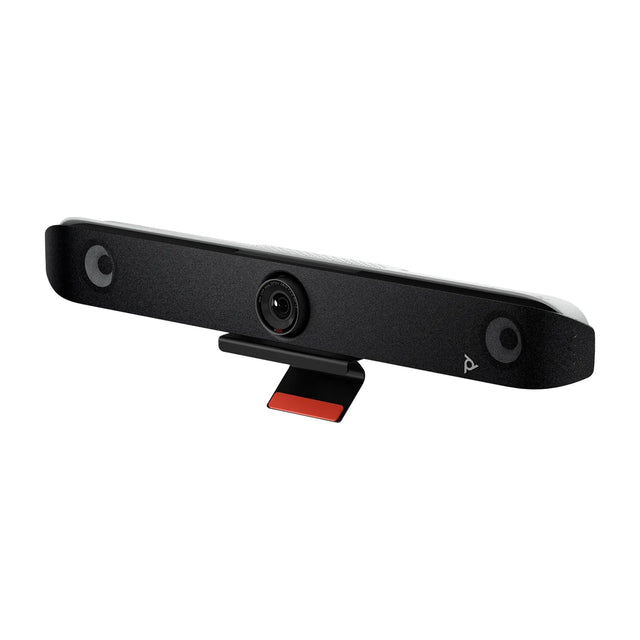
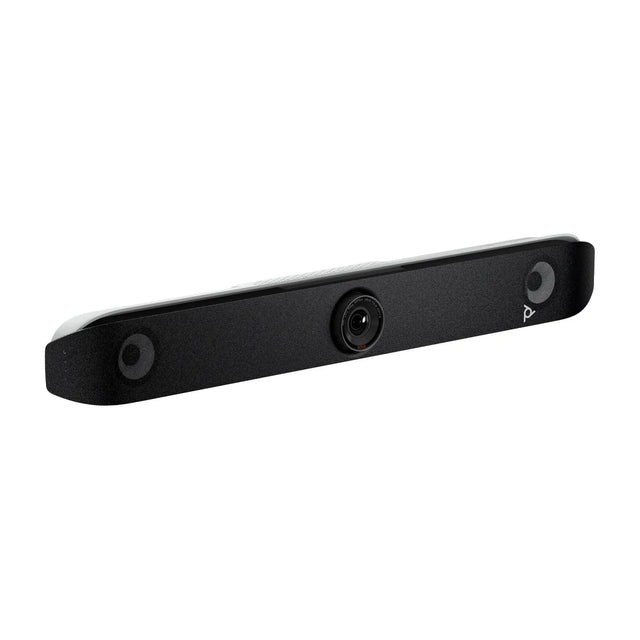
Only certified devices show full management features. Microsoft keeps lists of certified Teams Rooms systems, peripherals and panels. Our overview: Teams Rooms certified devices. Popular managed kits include the Logitech Rally Bar + Tap IP and Poly Studio X52; a Logitech Tap Scheduler shows up as a Teams panel.
Getting Teams Rooms support
- Check device health and download logs from the admin center.
- Check known issues: Teams Rooms troubleshooting and release notes.
- Hardware faults go to the device manufacturer.
- Software and service issues go to Microsoft through the Microsoft 365 admin center support request.
Rolling out more rooms? Get a quote for certified Teams Rooms kits built to your standard.
Related guides
- Zoom Rooms Admin Portal: Creating and Managing Rooms
- How to Assign a Teams Rooms License to a Room Account
- How to Convert a Conference Room to Microsoft Teams Rooms
- How to Set Up Microsoft Teams Rooms: Step by Step
- Microsoft Teams Rooms Hardware: What You Need
- Teams Rooms Basic vs Pro: license differences explained
Outfitting several rooms, or reselling? Get a volume quote or apply for wholesale pricing →