To share content wirelessly in a meeting room, use one of three methods: join the same Teams or Zoom meeting from your laptop and share your screen (the room system shows it), cast with your device's built-in AirPlay or Miracast to a receiver that supports it, or plug in a wireless presentation button and press it. Which one works depends on what's installed in the room.

Method 1: Share through the meeting app (Teams Rooms or Zoom Rooms)
Microsoft Teams Rooms
- Start or join the meeting from the room.
- On your laptop, join the same meeting with audio off (Teams usually detects the room and offers this).
- Click Share and pick your screen or window.
- The room displays the content and remote attendees see it.
Teams also supports proximity-based joining so your laptop can find the room. See Teams Rooms content sharing and Teams Rooms proximity join.
Zoom Rooms
- In the Zoom app on your laptop, choose Share screen.
- Enter the sharing key shown on the room display, or let ultrasonic proximity detect the room.
- Pick your screen. It appears in the room and in the meeting if one is running.
You can also share to a Zoom Room without a meeting, for in-room presentations.
Method 2: Cast with AirPlay or Miracast
Works only if the receiver supports it (a wireless presentation box, or a room system with these protocols enabled).
Mac, iPhone or iPad (AirPlay)
- Connect to the network the room's receiver is on.
- Open Control Center > Screen Mirroring.
- Choose the room's name and enter the code if shown.
Windows (Miracast)
- Press Windows key + K.
- Choose the room's display.
- Enter the PIN if asked.
AirPlay discovery often fails across network segments (VLANs). If the room doesn't appear, IT may need to enable discovery between networks.
Method 3: Use a wireless presentation button
- Plug the button into your laptop's USB-C or USB-A port.
- Wait for the LED to show it's ready (first use may launch a small app).
- Press the button to share; press again to stop.
No app install or network join is needed with most button systems, which makes them best for guests. The Yealink RoomCast E2 supports AirPlay, Miracast and YeaCast, with up to four sources on screen; Yealink Pod buttons work with it where sold, but Yealink doesn't sell the WPP30 pod in the US. See Yealink RoomCast button pairing and wireless presentation button dongles.
Which method to set up in your rooms
| Room type | Best fit |
|---|---|
| Teams Rooms or Zoom Rooms appliance (e.g. Logitech Rally Bar, Neat Bar Generation 2) | Meeting app sharing, plus a button system for guests |
| Room with frequent visitors | Button system with guest isolation |
| Mixed Mac and Windows users, no room system | Receiver with AirPlay + Miracast |
| BYOD room | Receiver on the display, plus a USB camera. See Yealink RoomCast BYOD camera |
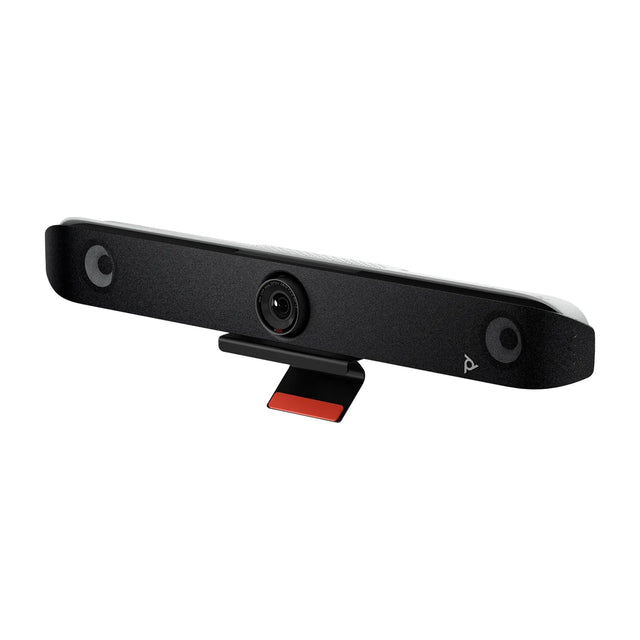
Some room systems, such as the Poly Studio X52, list AirPlay and Miracast directly. Learn the basics in what is wireless presentation.
Common mistakes
- Laptop audio on in the room, causing echo. Join with audio off.
- Playing video over Miracast on busy Wi-Fi. Use wired HDMI for video-heavy content.
- Guests on the corporate network. Use a receiver with guest isolation.
- Sharing your whole screen with notifications on. Share a window or turn on Do Not Disturb.
- No wired fallback. Keep an HDMI or USB-C cable at the table. See HDMI input on a video bar.
Troubleshooting: Yealink RoomCast troubleshooting. Compare systems: best wireless presentation systems.
Want wireless sharing that just works? Ask us for a recommendation for your rooms.
Related guides
- How to Join Microsoft Teams Meetings from a Zoom Room
- How to Update Firmware on Many Meeting Rooms at Once
- Appliance Mode vs USB Mode: Video Bar Modes Explained
- Best all-in-one video conferencing systems
- Crestron, Bose, QSC and Biamp Video Bars Compared
- Firmware Management for Meeting Room Devices Explained
Outfitting several rooms, or reselling? Get a volume quote or apply for wholesale pricing →