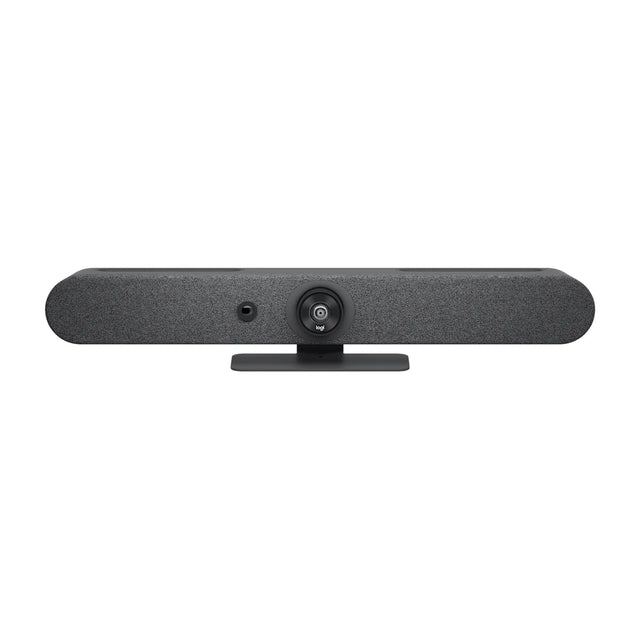
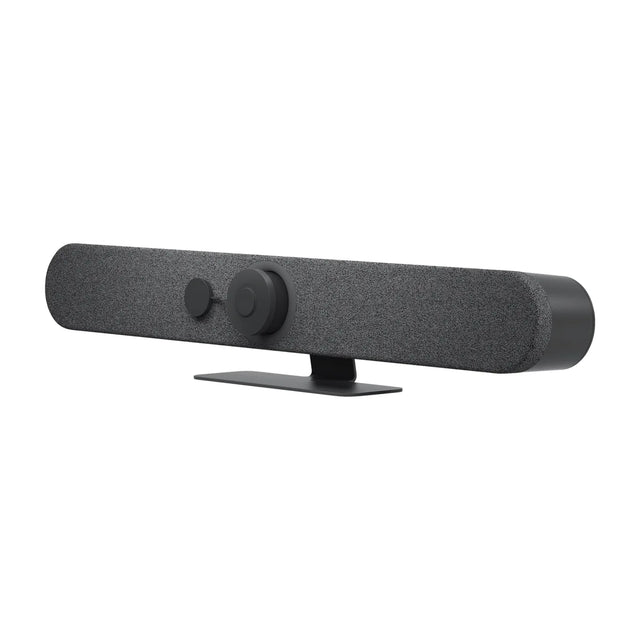
An HDMI input on a video bar is a port where you plug in a laptop or other source so its screen can be shared, either into the meeting (when the bar runs Teams Rooms or Zoom Rooms) or onto the room display through the bar. It gives a room wired, no-software content sharing without a separate HDMI switch.

How it works
| Bar mode | What HDMI input does |
|---|---|
| Appliance (Teams Rooms, Zoom Rooms on the bar) | The bar captures the laptop's HDMI signal and shares it as content in the meeting, and shows it on the room display. Called HDMI ingest. |
| USB/BYOD mode | Depends on the bar. On some bars the laptop's video passes through to the room display, so one display connection handles both. The camera and audio go to the laptop over USB. |
In appliance mode, sharing typically starts automatically when a laptop is plugged in, or with a tap on the touch controller. See HDMI ingest and content sharing in meeting rooms.
Why it matters
- Works with any laptop. Guests don't need an app, a dongle or network access.
- Reliable. Wired sharing doesn't depend on Wi-Fi.
- Fewer boxes. No separate switcher or table hub on smaller rooms.
- Video-friendly. Wired sharing usually handles motion better than casting.
Limits to know
- HDCP content. Copy-protected sources (many streaming services, some Blu-ray players and cable boxes) generally won't share through a video bar's HDMI input. Logitech, for example, states HDCP-protected content can't be shared through its HDMI input.
- Laptop ports. Many laptops only have USB-C. Keep a USB-C to HDMI adapter tethered at the table, or use a bar with USB-C sharing.
- Cable length. Passive HDMI is reliable up to about 15-25 ft (5-7.5 m) depending on resolution and cable quality. For longer runs to the table, use an extender or active cable. See how to hide conference room cables.
- Resolution in meetings. Content shared into a Teams or Zoom meeting is often sent at a lower frame rate or resolution than the local display shows.
Video bars with HDMI input in our catalog
| Bar | HDMI ports (per manufacturer specs) |
|---|---|
| Logitech Rally Bar | 2 x HDMI out, 1 x HDMI in |
| Logitech Rally Bar Mini | 2 x HDMI out, 1 x HDMI in |
| Logitech Rally Bar 2 | 2 x HDMI out, 1 x HDMI in up to 4K60 |
| Logitech Rally Bar Huddle | 1 x HDMI out, 1 x HDMI in |
| Logitech MeetUp 2 | 1 x HDMI out, 1 x HDMI in |
| Jabra PanaCast U30 | 1 x HDMI in, 1 x HDMI out |
| Neat Bar Pro | HDMI input for sharing |
| Poly Studio X52 | Wired HDMI input |
| AVer VB370A | 2 x HDMI out, 1 x HDMI in |
Touch controllers can also take HDMI: the Logitech Tap has HDMI ingest at the table, which avoids a long cable run to the bar.
What to look for when buying
- Where the input is. On the bar (behind the display) means a cable run to the table. On a controller or table box puts it where people sit.
- Supported resolution for your laptops and displays.
- Auto-share behavior on plug-in.
- Wireless option too. Pair HDMI with wireless casting for guests. See how to share content wirelessly.
Related: how to connect a laptop to a conference room TV and best video bars.
Want one-cable sharing in your rooms? Ask us for a recommendation.
Related guides
- What Is HDMI Ingest? Wired Sharing in Meeting Rooms
- Appliance Mode vs USB Mode: Video Bar Modes Explained
- Logitech Rally Bar Mini: price, specs, room size
- Logitech Rally Bar vs AVer VB370A: which to buy?
- Logitech Rally Bar: price, specs, room size
- Video Bar Speaker Wattage: What the Watts Really Mean
Outfitting several rooms, or reselling? Get a volume quote or apply for wholesale pricing →