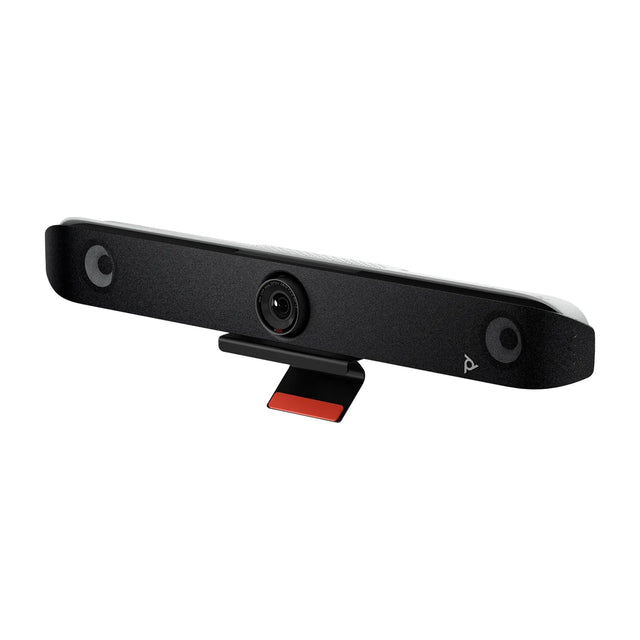
A Zoom Room can join a Microsoft Teams meeting directly, using Zoom's built-in third-party meeting support. An admin enables it in the Zoom web portal, and then people tap the Join button on the controller when a Teams invite is on the room calendar, or pick Teams and enter the meeting ID and passcode. The room joins as a guest, with a smaller feature set than a native Teams Room.

How it works
Zoom Rooms joins the Teams meeting as an external guest, much like a browser user would. That's why the host's Teams tenant must allow anonymous or guest join, and why some features (like Teams chat or reactions) aren't available. Microsoft and Zoom document this interop on both sides; the Teams equivalent is Teams Rooms direct guest join.
Step-by-step setup
- Sign in to the Zoom web portal as an admin and go to Room Management, then Zoom Rooms.
- Open account (or location/room) settings and find the third-party meeting options. Enable support for Microsoft Teams meetings, plus the option to show a Join button for third-party meetings from the calendar. Setting names change over time; search the settings page for "third party" if you don't see them.
- Connect the room calendar (Microsoft 365 or Google) so Teams invites appear on the room's schedule. See Zoom Rooms calendar integration.
- Make sure meeting invites reach the room with the Teams join link intact. Some mail systems rewrite links or strip meeting bodies from room mailbox invites. In Exchange, check the room mailbox's calendar processing settings so the meeting body isn't deleted.
- Test a meeting from another tenant, not just your own, to confirm guest access works.
How users join
| Method | Steps |
|---|---|
| From the calendar | Tap the Teams meeting on the controller's schedule, then Join |
| Manual join | On the controller, choose the Teams option (if enabled), enter meeting ID and passcode |
| BYOD fallback | Plug a laptop into the bar over USB-C and join in the Teams app |
What to expect in the meeting
- Video and audio both ways, with in-room camera framing working as usual
- Content sharing that depends on how the room joins; test wired and wireless sharing before relying on it
- No Teams chat, reactions, or Teams-specific layouts like front row in the room
- The room may wait in the Teams lobby until someone admits it
For full Teams features, the room needs to run Teams Rooms instead. See Teams Rooms vs Zoom Rooms and Zoom Rooms interop.
Common mistakes
- Enabling the setting at the account level but having it overridden at a location or room level.
- Testing only with internal meetings, then finding external tenants block anonymous join.
- Room mailbox settings stripping the join link, so no Join button appears.
- Expecting the room to work like a native Teams Room.
Hardware that helps
Multi-platform appliance bars can run Zoom Rooms today and switch to Teams Rooms later, which protects the investment if your organization changes platform:
- Logitech Rally Bar runs Zoom Rooms, Teams Rooms or Google Meet.
- Yealink MeetingBar A40 runs Zoom Rooms or Teams Rooms on Android.
- Neat Bar Generation 2 runs Zoom Rooms, Teams Rooms or Google Meet, plus BYOD.
- Poly Studio X52 runs Teams, Zoom or Meet with no PC.
Bars with BYOD mode give a reliable fallback for any meeting the room can't join natively. See best Zoom Rooms hardware.
Running a mix of Zoom and Teams? Tell us how your rooms are used and we'll recommend hardware that handles both.
Related guides
- Join Zoom or Google Meet from a Microsoft Teams Room
- Join Teams or Zoom from Google Meet hardware
- Microsoft Teams Rooms vs Zoom Rooms: Which Is Better?
- Video Conferencing Platforms Compared: Teams, Zoom, Meet
- How to join a meeting from a Microsoft Teams Room
- Join Teams or Google Meet from a Zoom Room
Outfitting several rooms, or reselling? Get a volume quote or apply for wholesale pricing →