To replace an old Polycom system such as an HDX or Group Series, first decide which meeting platform the room will use (usually Microsoft Teams, Zoom or Google Meet), then choose a modern all-in-one video bar or modular system sized for the room. Plan how you'll still reach anyone who calls by H.323 or SIP, reuse the display and cabling where you can, and retire the old codec, cameras and microphones. Most rooms end up simpler: one bar and a touch controller replace a codec, camera, mic pods and remote.

Why replace it
- Polycom HDX and Group Series systems are long past their prime, with end-of-sale and end-of-support for many models. Check Poly's (now HP's) current support status for your model.
- They were built for H.323 and SIP calling, not for Teams, Zoom or Meet meetings.
- They lack AI framing, modern noise suppression and one-touch join.
- Older firmware can be a security risk on your network.
Step-by-step
- Inventory the room. Note the codec model, cameras, mics, displays, any touch panel and cable runs. Record what people actually use the room for.
- Choose the platform. Teams Rooms, Zoom Rooms, Google Meet, or BYOD. See Teams Rooms vs Zoom Rooms and Teams Rooms vs BYOD.
- Check who still dials by H.323 or SIP. If partners or other sites still call your room's IP address, plan a cloud video interop service or the Zoom Room Connector. See what is H.323.
- Measure the room and count seats. See how to measure a room for video conferencing.
- Pick the replacement by room size (table below).
- Decide what to reuse. Displays usually stay if they're 1080p or 4K with HDMI. Old Polycom mic pods and cameras generally don't work with new systems.
- Set up accounts and licenses for the room: a room resource account and a Teams Rooms or Zoom Rooms license.
- Install, test and train. Run a test call to each platform you use, then show users the new controller.
- Retire the old system. Factory reset it to clear stored directories and credentials before disposal or recycling.
Replacement options by room size
| Room | Old setup | Modern replacement |
|---|---|---|
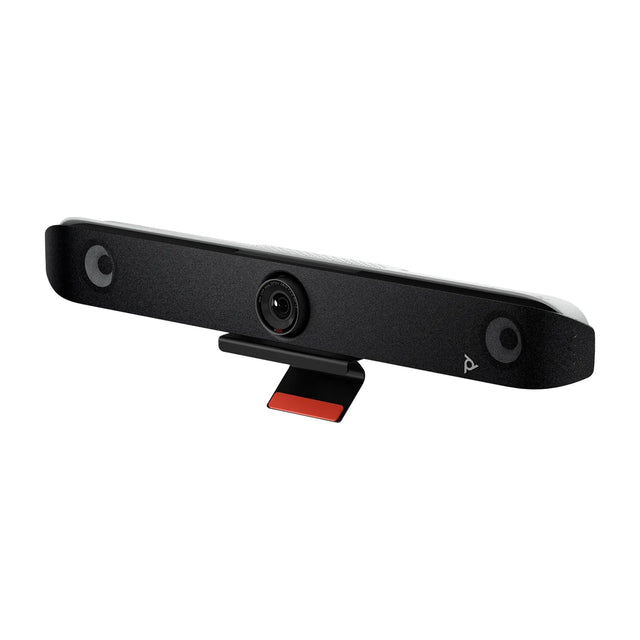
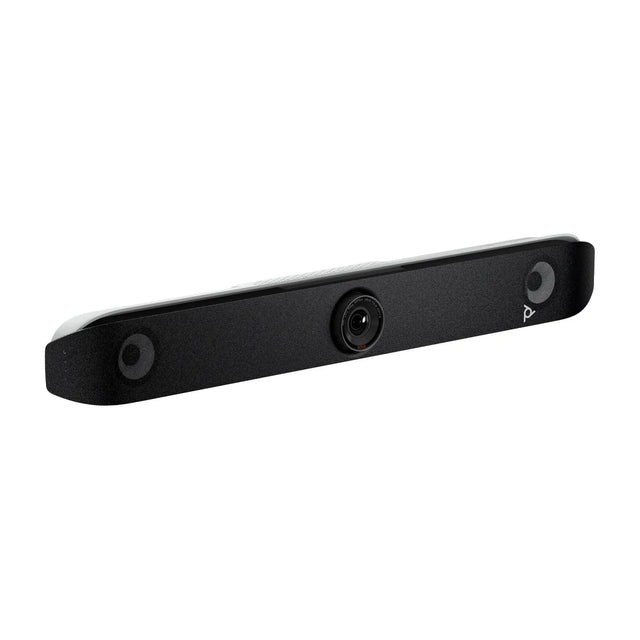
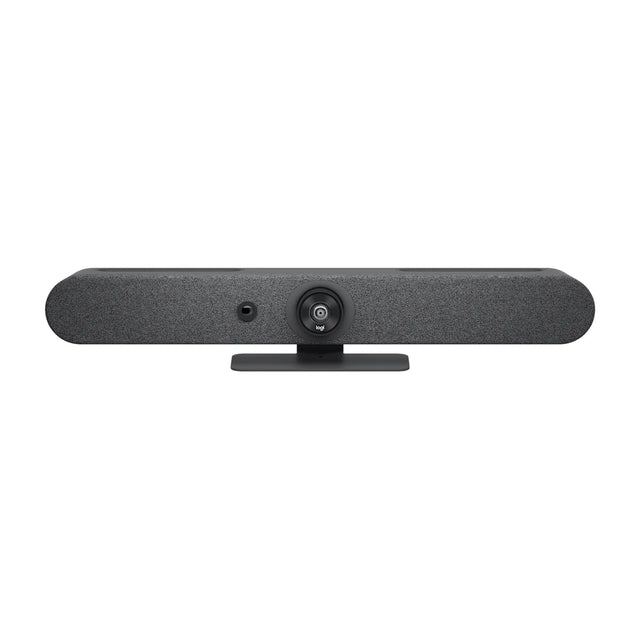
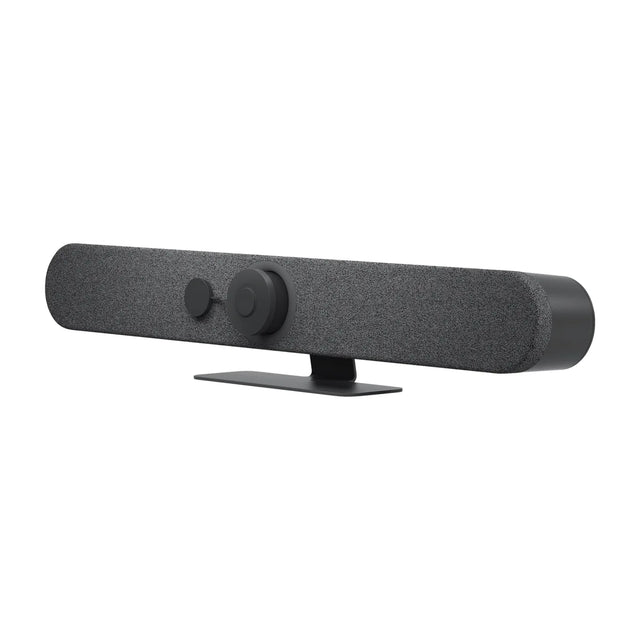
| Small (4-6) | Group 300 or HDX with EagleEye camera | Poly Studio X32 or Logitech Rally Bar Huddle |
| Medium (6-10) | Group 500 with mic pod | Poly Studio X52 or Logitech Rally Bar Mini |
| Large (10-16) | Group 500/700 with 2+ mics | Poly Studio X72 or Logitech Rally Bar with mic pods |
| Boardroom / custom | Group 700, ceiling mics, multiple cameras | Poly G7500 with Poly IP Ceiling Microphones, or a Teams Rooms kit like the Yealink MVC S80 |
Staying with Poly keeps a familiar brand and the Poly Lens management portal; see Poly video conferencing. Other brands are equally valid; compare in best video bars.
Common mistakes
- Buying a Teams or Zoom device before checking whether anyone still dials the room by IP.
- Keeping an old projector that makes the new camera's video look worse.
- Leaving the old codec on the network after the swap.
- Forgetting the room needs a platform license, not just hardware.
Replacing several Polycom rooms? Send us your current models and room sizes and we'll map each one to a modern system.
Related guides
- Cisco Webex Room Devices vs Logitech, Poly and Yealink
- How to Join Microsoft Teams Meetings from a Zoom Room
- How to Share Your Screen Wirelessly in a Meeting Room
- How to Update Firmware on Many Meeting Rooms at Once
- How to Upgrade a Projector Room to a Video Meeting Room
- How to install a video conferencing system
Outfitting several rooms, or reselling? Get a volume quote or apply for wholesale pricing →