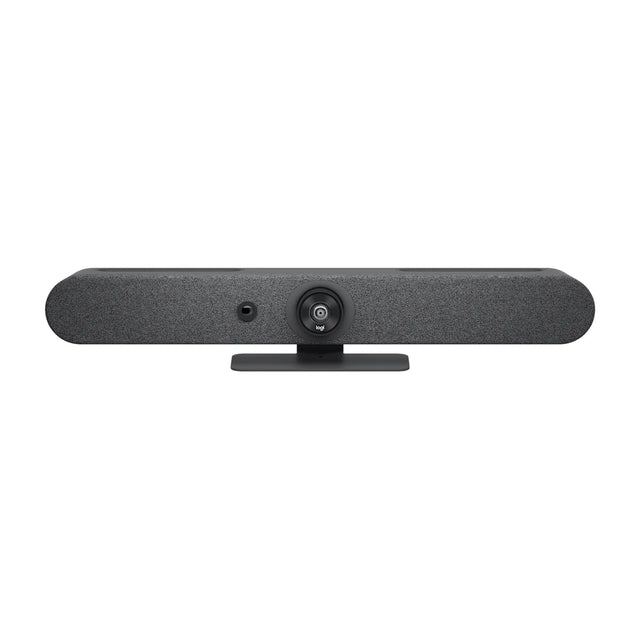
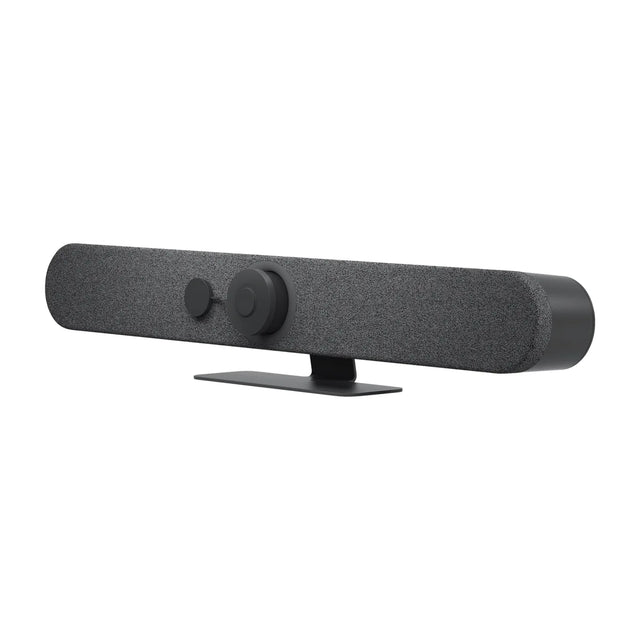
Logitech conference room cameras don't need a driver. They are standard USB video and audio devices (UVC/UAC), so Windows, macOS and ChromeOS recognize them automatically. The software you actually use is Logitech Sync to manage, monitor and update room devices, and Logi Tune (and on older setups, Logitech's camera settings app) for camera adjustments like zoom, framing and presets.

Logitech room software at a glance
| Software | What it does | Who uses it |
|---|---|---|
| Logitech Sync | Device inventory, firmware updates, settings, health monitoring, room insights. Desktop app on a room PC plus a cloud portal | IT admins |
| Logi Tune | Personal and room-device adjustments: camera framing, zoom, audio settings, firmware for supported devices | Users and admins in BYOD rooms |
| Legacy camera settings app | Pan, tilt, zoom, presets and image settings on older models like GROUP and the original MeetUp | Admins of older rooms |
| CollabOS (on device) | Operating system on Rally Bar family, RoomMate and Tap IP that runs the appliance mode and its device settings | Admins, via Sync or the device's own settings |
Logitech has been consolidating features across these tools, so check Logitech's support page for your model to see which app it uses today.
Do I need a driver?
No. Plug the camera in and select it in Teams, Zoom, Meet or any other app. If a camera isn't detected, the problem is usually the cable, a hub, power or USB port, not a missing driver. See Logitech camera not working.
Things to keep in mind:
- Firmware updates are still important; they fix bugs and add features. See the firmware guide for your model, such as Rally Bar firmware or MeetUp 2 firmware.
- Single-cable BYOD with Logitech Swytch carries video using DisplayLink technology. Check Logitech's Swytch support page for any laptop software your OS needs.
Logitech Sync: managing room cameras
Sync is free for core device management, with paid plans for advanced features such as room insights. Use it to:
- See every Logitech room device in one portal.
- Push firmware updates, or schedule them overnight.
- Change device settings remotely, including RightSight framing modes.
- Get alerts when a device goes offline.
Appliance devices such as the Rally Bar, Rally Bar Mini and Tap IP connect to Sync over the network. USB devices on a room PC, like the MeetUp 2, connect through the Sync app installed on that PC.
Logi Tune: camera settings in BYOD rooms
Logi Tune lets someone on a laptop adjust a supported Logitech camera: change framing, zoom, and other picture settings, and check for firmware. It's handy in BYOD rooms where there's no room PC running Sync.
Logitech conference camera remote
Most Logitech room cameras include an IR or Bluetooth remote for pan, tilt, zoom, presets and volume.
| Camera | Remote |
|---|---|
| GROUP | Remote included |
| MeetUp | Remote included |
| MeetUp 2 | Original MeetUp remote isn't compatible; a Rally Bar or Rally Bar Mini remote can be used |
| Rally Bar / Rally Bar Mini | Remote included (not on No-Radio models) |
In appliance rooms, the Tap IP or Tap touch controller replaces the remote for most tasks.
Which software should you install?
- BYOD room, USB camera: nothing required. Add Logi Tune if users want to adjust the camera.
- Room PC with Teams Rooms or Zoom Rooms: install the Sync app on the PC to manage the Logitech peripherals.
- Appliance (CollabOS) room: no PC software; manage the devices through Sync.
Setting up Logitech rooms for the first time? Start with how to set up a Logitech conference room camera, or ask us to plan the rollout.
Related guides
Outfitting several rooms, or reselling? Get a volume quote or apply for wholesale pricing →