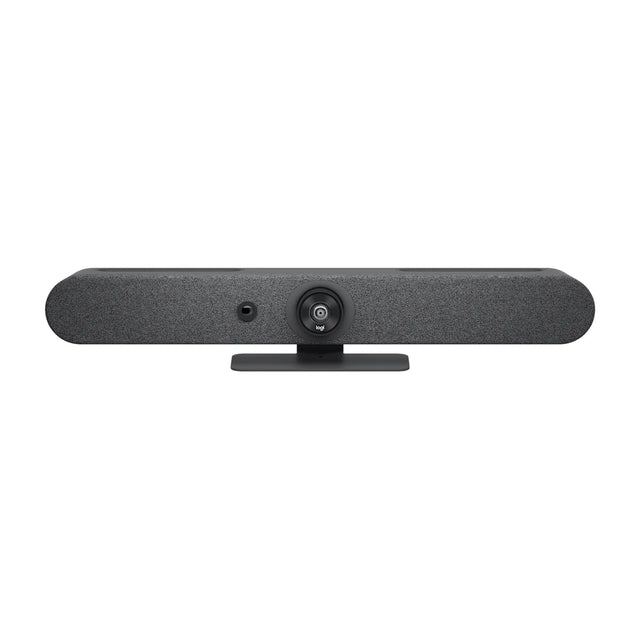
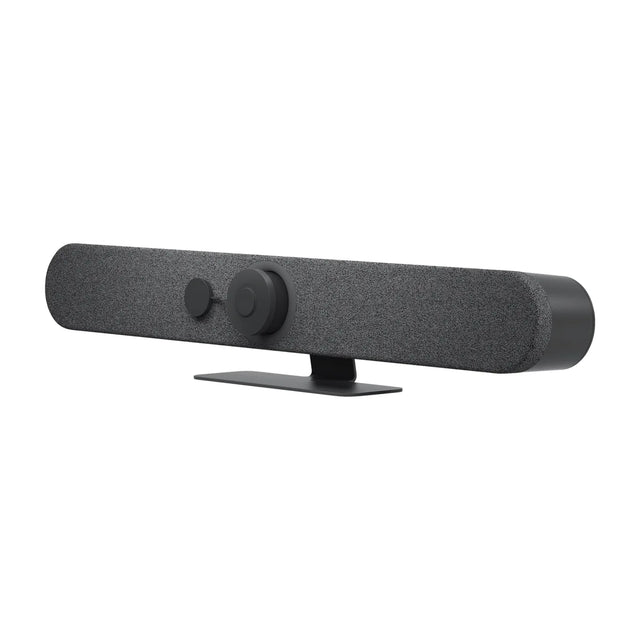
To connect two displays to a video bar, you need a bar with two HDMI outputs (most appliance bars for medium and large rooms have them). Run an HDMI cable from each output to each display, then turn on dual-display mode in the device or platform settings. With a USB video bar, the bar doesn't drive the screens; the laptop or room PC does, so connect both displays to the computer.

Which bars support two displays
| Device | Display outputs (from specs) |
|---|---|
| Logitech Rally Bar 2 | 2 x HDMI out, up to 4K60 |
| Logitech Rally Bar | 2 x HDMI out, up to 1080p |
| Logitech Rally Bar Mini | 2 x HDMI out, up to 1080p |
| Yealink MeetingBar A50 | 2 x HDMI out; enable Dual Monitor Mode |
| Yealink MeetingBar A40 | 2 x HDMI out (CEC) |
| Yealink MeetingBar A30 | Dual screen |
| Neat Bar Generation 2 | 2 x HDMI out |
| Neat Bar Pro | 3 x HDMI out |
| Jabra PanaCast 55 VBS | Dual HDMI outputs |
| AVer VB370A | 2 x HDMI out |
| Poly Studio X52 | Two displays (three in Zoom with a supported adapter) |
Single-output examples: Logitech Rally Bar Huddle has one HDMI output, so it supports one display. For Windows Teams Rooms, the compute drives the displays; the Yealink MVC S40 kit's MCore 4 has three HDMI outputs.
Steps (appliance video bar)
- Confirm dual-display support for your bar and platform (Teams Rooms, Zoom Rooms or Google Meet).
- Mount both displays side by side at the same height, with the bar centered under or over the gap or under the primary screen. See dual display conference room.
- Connect HDMI 1 to the left (primary) display and HDMI 2 to the right display, or follow the vendor's labeling.
- Use quality HDMI cables rated for the resolution. For long runs, use active or fiber HDMI.
- Power on both displays and set them to the right input. Enable HDMI-CEC if you want the bar to wake them. See HDMI-CEC.
- Turn on dual-screen mode in the device settings or management portal (for example, Dual Monitor Mode on the Yealink A50).
- Set the layout. Typically people on one screen, shared content on the other.
- Test a call with content sharing to confirm content moves to the second screen.
Steps (USB video bar or BYOD)
- Connect both displays to the laptop or room PC (HDMI, DisplayPort or a USB-C dock).
- Connect the USB bar to the computer for camera and audio.
- In the OS display settings, choose Extend.
- In the meeting app, drag the meeting window to one screen and share content on the other.
Common mistakes
- Assuming every bar has two outputs. Huddle-class bars often have one.
- Mismatched displays. Different sizes or brands look odd and may scale differently. Use identical models.
- Wrong license tier. Microsoft lists dual screen support as a Teams Rooms Pro feature. See Teams Rooms Basic vs Pro.
- Bar under only one display in a wide room, so people look away from the camera. Center the camera if possible.
- HDMI input confusion. The bar's HDMI input is for sharing content, not for a second display.
Mounts for dual displays
The Logitech Rally TV Mount 2 supports single or dual 55-85 in. displays with Rally Bar 2 and Logitech AI cameras. See video bar mounts and conference room TV mounts.
Planning a dual-screen room? Send us the wall width and seat count and we'll size the displays and bar.
Related guides
- How to Connect a Ceiling Microphone to a Video Bar
- Jabra PanaCast 50 Video Bar System: price, specs, room size
- Jabra PanaCast 55 VBS vs Logitech Rally Bar 2: which to buy?
- Logitech Rally Bar alternatives compared
- Yealink MeetingBar A50 vs Logitech Rally Bar 2
- How to Light a Conference Room for Video Calls
Outfitting several rooms, or reselling? Get a volume quote or apply for wholesale pricing →