To get IT to approve meeting room hardware, bring them a proposal that answers their questions before they ask: certified devices for your company's meeting platform, the network and security requirements, how the devices are managed and updated, licensing and support costs, and a short pilot plan. IT teams say no to unknowns, not to video conferencing.

Step-by-step
- Talk to IT early. Ask what platform, standards and approved vendors already exist. Many companies have a room standard; see multi-site company room standards.
- Describe the need, not the product. Room sizes, seat counts, how often the rooms are used, and what's not working today.
- Pick certified devices. Choose models certified for your platform: Teams Rooms certified devices, Zoom Rooms certified hardware or Google Meet certified hardware.
- Answer the security questions (see checklist below), using the manufacturer's security documentation.
- Show how it's managed. Platform admin center plus the vendor's console (Logitech Sync, Poly Lens, Yealink's management platform, Neat Pulse).
- Show total cost. Hardware, mounts, cabling, installation, room licenses per year, and support.
- Propose a pilot. One or two rooms for 30 days, with success criteria.
- Agree on ownership. Who supports the rooms day to day, and who handles firmware.
The security and network checklist
| IT will ask | Have an answer |
|---|---|
| What OS does it run? | Windows, Android (MDEP or vendor OS), or USB peripheral only |
| How is it updated? | Platform and vendor update channels; can updates be scheduled? |
| What network access does it need? | Ports and URLs from the platform's documentation |
| Does it support 802.1X, VLANs? | Check the spec sheet. See 802.1X for room devices |
| What data leaves the device? | Telemetry, analytics, video processing; check vendor docs |
| How is it signed in? | Resource account; MFA and conditional access policy implications |
| End of support date? | Vendor lifecycle page |
| Can it be managed with existing tools? | Intune, Admin console, vendor console |
Network requirements: see Teams Rooms network requirements and QoS for video conferencing.
Why USB vs appliance matters to IT
| USB devices | Appliance devices | |
|---|---|---|
| IT approval | Usually easier: a peripheral on a managed PC | Needs network, security and account review |
| Licensing | None for the device | Room license per device |
| Management | PC management plus vendor app | Platform admin center plus vendor console |
| User experience | Bring a laptop | One-touch join |
USB bars like the Logitech MeetUp 2 can be a quick win while IT reviews appliance options.
Common mistakes
- Buying first and asking IT later.
- Choosing consumer webcams that aren't certified or manageable.
- Ignoring licensing, so the budget comes up short.
- Mixing brands so IT needs several management tools.
- Not having a plan for who fixes the room on Monday morning.
Devices that are easy for IT to support
These multi-platform appliances are certified across major platforms and centrally managed:
- Logitech Rally Bar Mini + Tap IP: Teams, Zoom, Meet; Logitech Sync
- Yealink MeetingBar A40: Teams Rooms on Android (MDEP) or Zoom Rooms
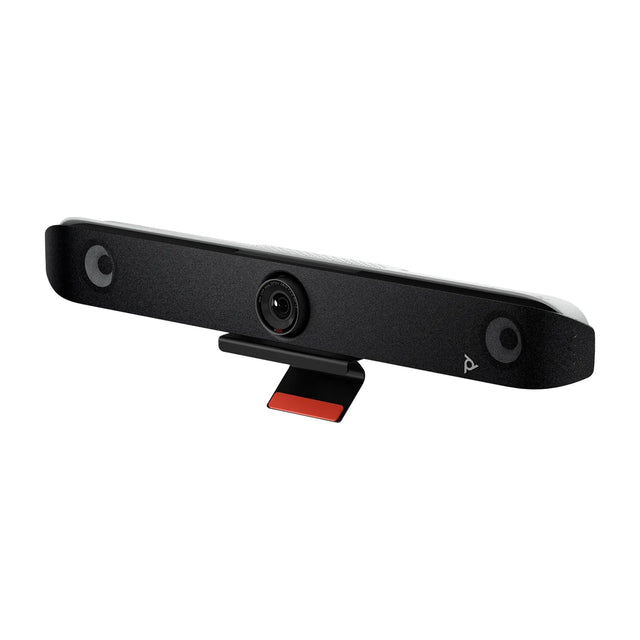
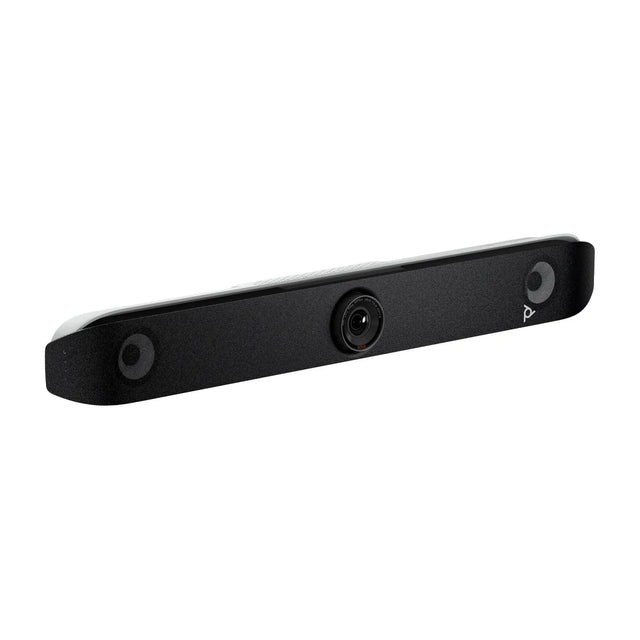
- Poly Studio X52: Teams, Zoom, Meet; no PC
- Neat Bar Generation 2: Teams, Zoom, Meet; BYOD mode
Compare options at compare.
Need a proposal IT will sign off on? Send us your room list and platform and we'll prepare a spec sheet and quote you can forward.
Related guides
Outfitting several rooms, or reselling? Get a volume quote or apply for wholesale pricing →